If you've ever wished you could ask ChatGPT a question right from a spreadsheet cell — without switching tabs, copying text, or juggling browser windows — OpenAI has now made that possible. According to OpenAI's official help documentation, ChatGPT can be used directly inside both Microsoft Excel and Google Sheets through a dedicated add-in or extension. This means you can call ChatGPT as a spreadsheet function, much like you'd use SUM or VLOOKUP, and get AI-generated responses right where your data lives.
This guide walks you through everything you need to know: what's required, how to install and use it, and a practical example you can try today.
What You Need Before You Start
- A ChatGPT account: You'll need an active OpenAI account. According to OpenAI's documentation, this feature is available to ChatGPT Plus, Team, and Enterprise subscribers.
- Microsoft Excel (desktop or web) or Google Sheets: The integration works in both environments.
- The ChatGPT add-in or extension: Available from the Microsoft Office Add-ins store (for Excel) or the Google Workspace Marketplace (for Google Sheets).
- A stable internet connection: Since ChatGPT processes requests in the cloud, you'll need to be online.
Step-by-Step: Installing and Using ChatGPT in Your Spreadsheet
Step 1 — Install the Add-in or Extension
For Microsoft Excel: Open Excel, go to the Insert tab, and select Get Add-ins (or Office Add-ins). Search for "ChatGPT" in the store and install the official OpenAI add-in. Follow the on-screen prompts to sign in with your OpenAI account.
For Google Sheets: Open a Google Sheet, navigate to Extensions → Add-ons → Get add-ons. Search for the ChatGPT extension in the Google Workspace Marketplace, install it, and authorise it with your OpenAI credentials.
Step 2 — Authenticate Your Account
Once installed, you'll be asked to log in to your ChatGPT account. This links the add-in to your subscription so that requests are processed under your plan's usage limits.
Step 3 — Use the ChatGPT Function in a Cell
According to OpenAI's documentation, you can now use a function like =CHATGPT("your prompt here") directly in any cell. The function sends your prompt to ChatGPT and returns the response as text in that cell. You can also reference other cells within your prompt, making it possible to process entire columns of data at once.
Step 4 — Apply It Across Rows and Columns
Just like any other formula, you can drag the function down a column to apply it to multiple rows. This is where the real time savings come in — batch processing hundreds of entries without leaving your spreadsheet.
A Practical Example: Categorising Customer Feedback
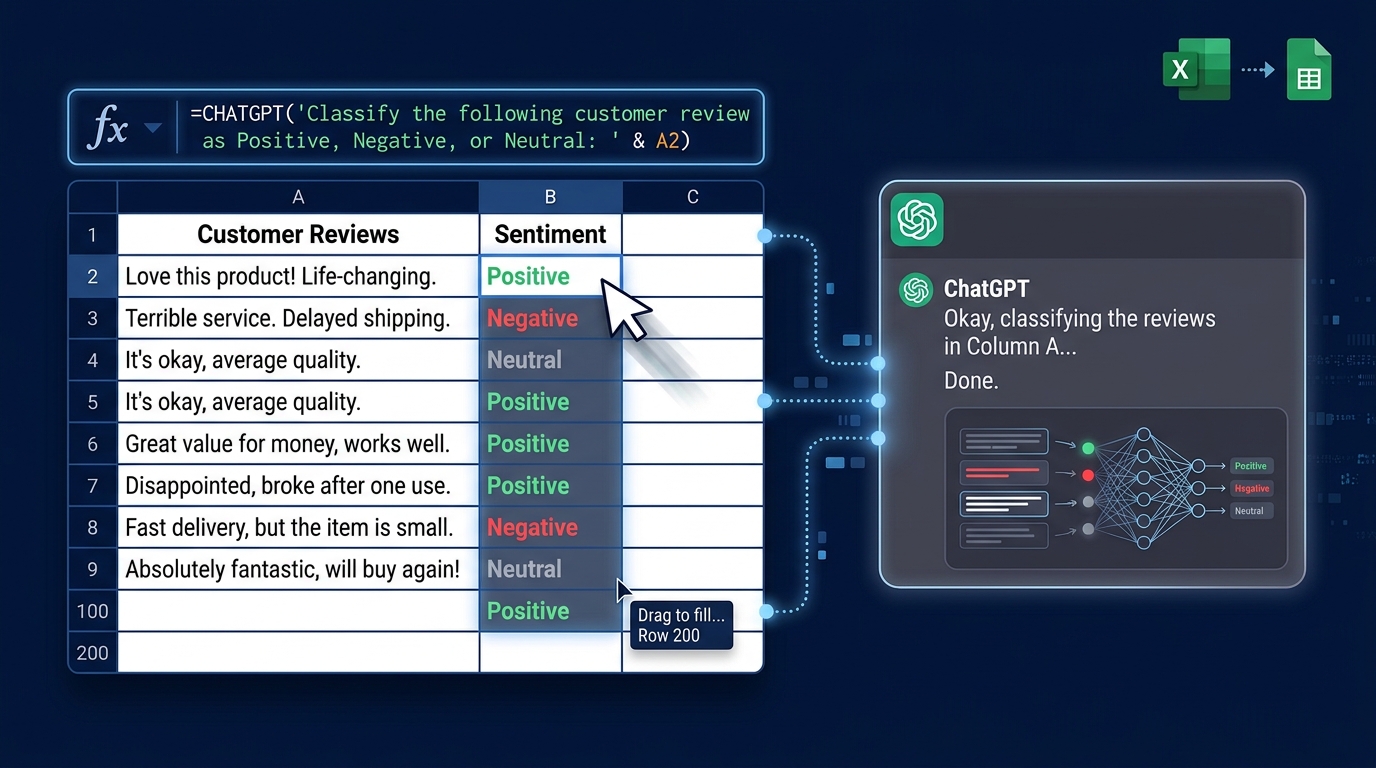
Imagine you run a small e-commerce business and you've collected 200 customer reviews in a Google Sheet. Column A contains the review text. You want to classify each review as "Positive", "Negative", or "Neutral" in Column B.
Here's what you'd type in cell B2:
=CHATGPT("Classify the following customer review as Positive, Negative, or Neutral. Only return one word. Review: " & A2)
Then drag that formula down to B201. Within minutes, every review has a classification — no manual reading required. You could extend this further by adding a Column C for a one-sentence summary:
=CHATGPT("Summarise this customer review in one sentence: " & A2)
This kind of workflow — classification, summarisation, translation, or even data extraction — is exactly what makes the spreadsheet integration so useful for day-to-day business tasks.
Tips for Getting the Best Results
- Be specific in your prompts: The more precise your instruction, the better the output. Instead of "Analyse this", say "Extract the main complaint from this review in 10 words or fewer."
- Watch your usage: Each function call counts as a ChatGPT request. If you're processing thousands of rows, keep an eye on your plan's rate limits.
- Use cell references: Build your prompts dynamically by referencing other cells. This makes your formulas reusable and adaptable.
- Start small: Test your prompt on a handful of rows before applying it to an entire dataset. This saves time and helps you refine the wording.
- Combine with existing functions: You can nest ChatGPT inside IF statements, CONCATENATE functions, or other Excel/Sheets formulas for more complex workflows.
Get Started with AI in Your Business
If you're looking to bring AI into your daily workflows — whether it's inside spreadsheets, content creation, or customer service — Brain.mt can help. I offer hands-on AI consulting, dedicated workshops, and training sessions tailored to your team's needs. Whether you're just getting started or want to go deeper, feel free to contact me for more information. 🚀