Introduction: Why Planning Matters Before You Code
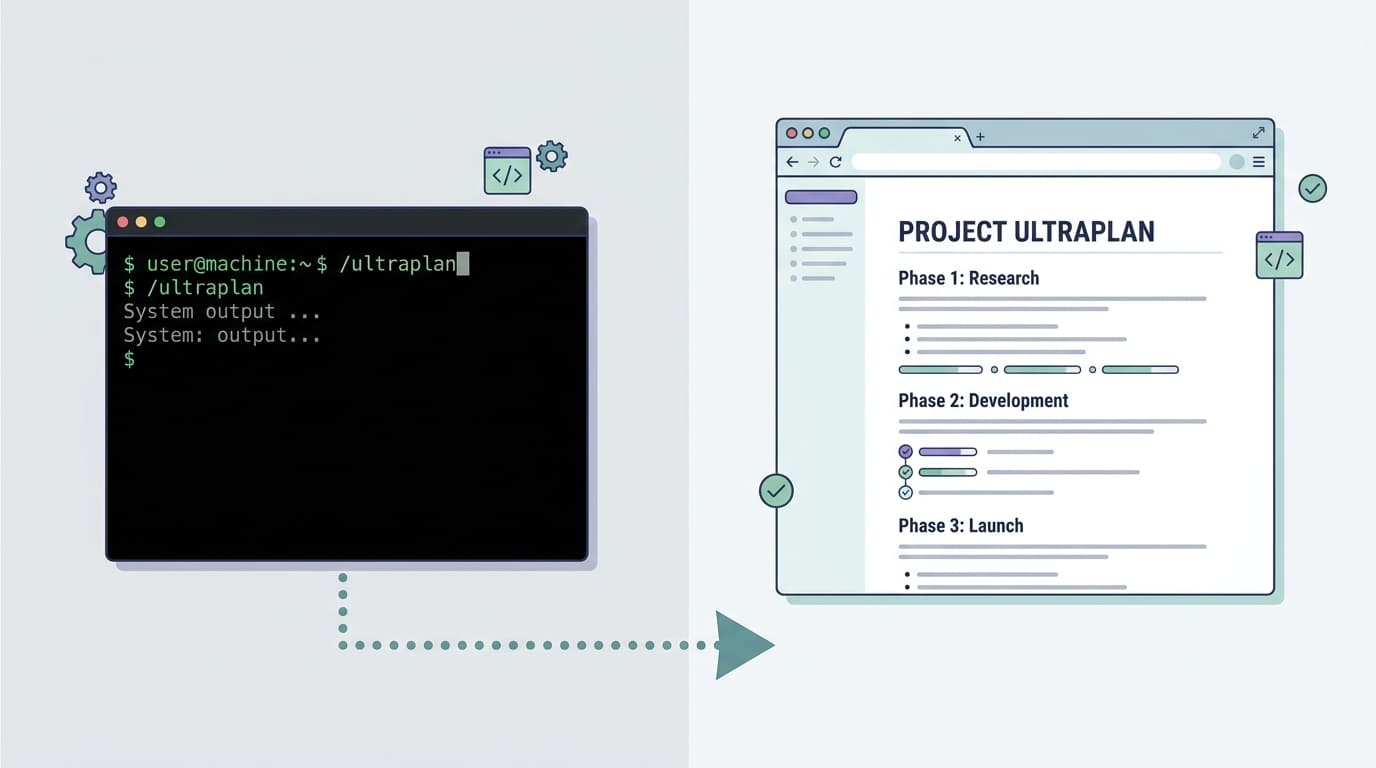
If you've ever jumped straight into a coding task only to realise halfway through that your approach was wrong, you already know the value of planning. Claude Code — Anthropic's command-line AI coding assistant — includes a feature called /ultraplan that gives you a structured way to think before you build. According to the official Claude Code documentation, the idea is straightforward: start a plan from your CLI, draft and refine it on Claude Code's web interface, and then execute it either remotely or back in your terminal. It's a bridge between the speed of a command line and the visual comfort of a browser-based editor, and it fits neatly into the kind of workflow where careful thought upfront saves hours of rework later.
What You Need Before Getting Started
- Claude Code installed and configured — You'll need the Claude Code CLI tool set up on your machine with a valid account and authentication in place.
- Access to Claude Code on the web — The web interface is where you'll refine your plan, so make sure you can log in at the Claude Code web portal.
- A clear task or project in mind —
/ultraplanworks best when you have a concrete goal: a feature to build, a bug to investigate, or a refactor to carry out.
Step-by-Step: How to Use /ultraplan
Step 1: Initiate the Plan from Your Terminal
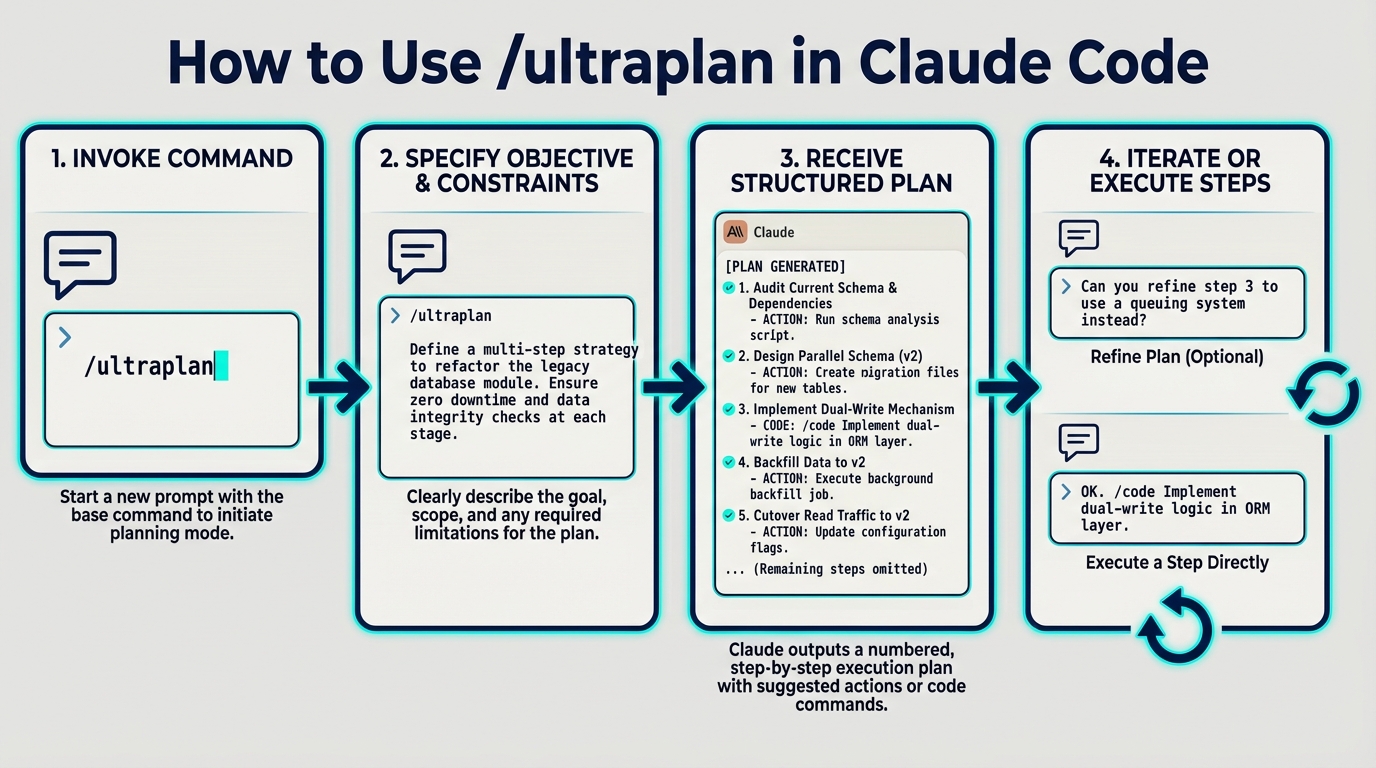
Open your terminal where Claude Code is running and type:
/ultraplanYou can follow this with a description of what you want to accomplish. For example:
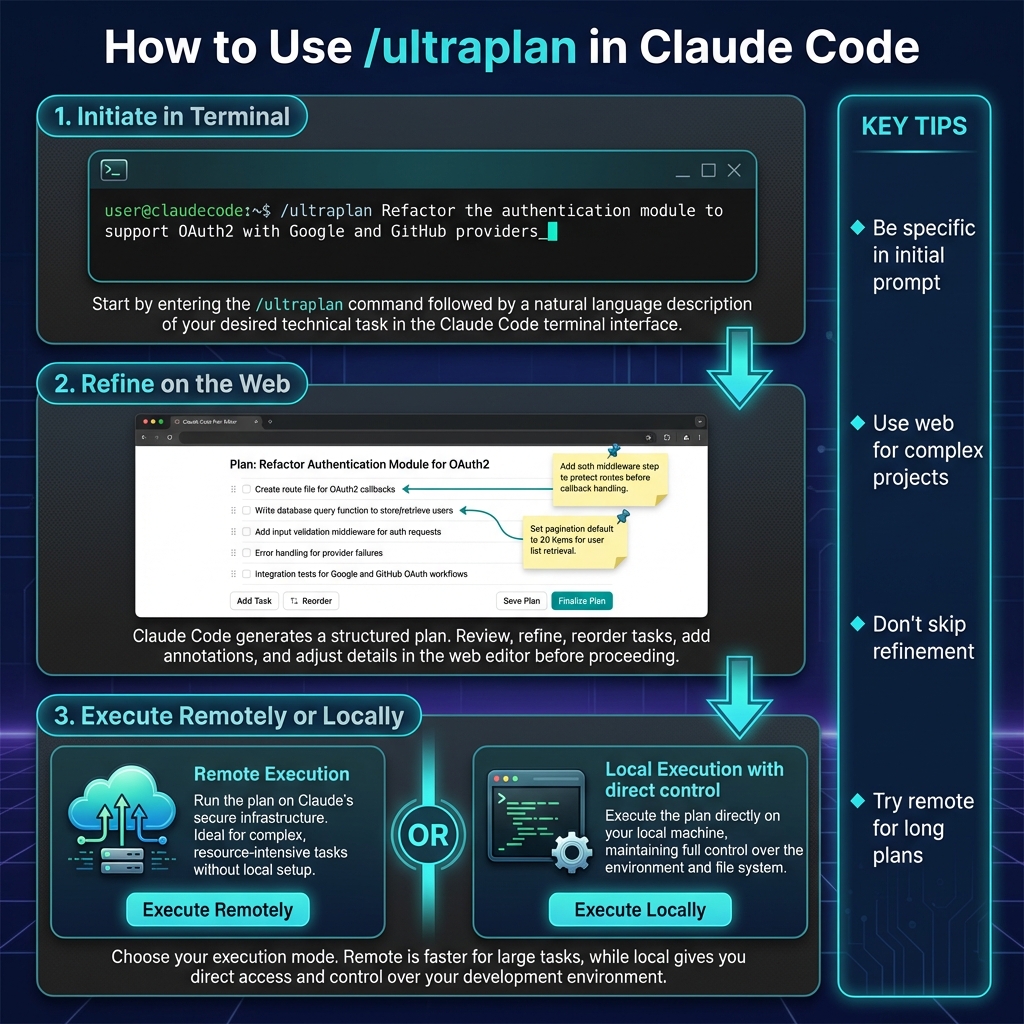
/ultraplan Refactor the authentication module to support OAuth2 with Google and GitHub providers, including unit tests for each flow.Claude Code will generate an initial plan structure based on your description. This typically includes a breakdown of tasks, suggested file changes, and a rough sequence of steps. Think of it as a first draft — useful, but not final.
Step 2: Open and Refine the Plan on the Web
After the CLI generates your plan, Claude Code provides a link to the web interface where you can view and edit it. Click that link or navigate to it in your browser. On the web, you'll see your plan laid out in a more visual format. Here you can:
- Reorder steps or group related tasks together
- Add context, notes, or constraints that weren't in your original prompt
- Remove steps that seem unnecessary or redundant
- Ask Claude to expand on specific sections with more detail
This is the stage where you move from a rough outline to a considered plan. The web interface makes it easier to see the full picture at a glance, which is harder to do in a scrolling terminal window.
Step 3: Execute the Plan — Remotely or Locally
Once you're satisfied with the plan, you have a choice according to the Claude Code docs: execute it remotely (through the cloud) or bring it back to your terminal and run it locally. Remote execution is useful when you want Claude to work through the steps without tying up your local machine. Local execution gives you more direct control, letting you review each change as it happens.
A Practical Example: Building a REST API Endpoint
Let's say you need to add a new /api/reports endpoint to an Express.js application. Here's how you might use /ultraplan in practice:
In the terminal, you type:
/ultraplan Add a GET /api/reports endpoint that returns paginated JSON data from the reports table in PostgreSQL. Include input validation, error handling, and integration tests.Claude Code produces an initial plan with steps like: (1) create a new route file, (2) write a database query function with pagination logic, (3) add input validation middleware, (4) implement error handling, and (5) write integration tests using a test database.
On the web, you refine it: You notice the plan doesn't mention authentication, so you add a step to include your existing auth middleware. You also reorder the steps so that the database query function is written before the route, since the route depends on it. You add a note that the pagination should default to 20 items per page.
Back in the terminal (or remotely), you execute: Claude works through each step, generating code that follows the plan you shaped. Because you spent five minutes refining the plan, the output is closer to what you actually need — fewer corrections, less back-and-forth.
Tips for Getting the Most Out of /ultraplan
- Be specific in your initial prompt. The more detail you give when starting the plan, the better the first draft will be. Mention technologies, constraints, and expected behaviour.
- Use the web interface for complex projects. For simple tasks, the CLI plan might be enough. But for anything involving multiple files, dependencies, or coordinated changes, the visual editor is worth the extra step.
- Don't skip the refinement stage. The whole point of
/ultraplanis to think before doing. Rushing through the web step defeats the purpose. - Try remote execution for long-running plans. If your plan involves many steps, remote execution lets your machine stay free for other work.
- Iterate. If the executed result isn't quite right, refine the plan and run it again. Each cycle gets you closer to the right solution.
Conclusion
The /ultraplan feature in Claude Code represents a thoughtful approach to AI-assisted development: plan first, refine carefully, then execute with confidence. It's a workflow that respects the reality that good code starts with good thinking. If you're interested in integrating tools like Claude Code into your business or development team, Brain.mt can help you use AI effectively in your day-to-day work. Get in touch for more information — we also offer dedicated workshops and training sessions on this subject, designed to get your team productive with AI coding tools quickly and practically.