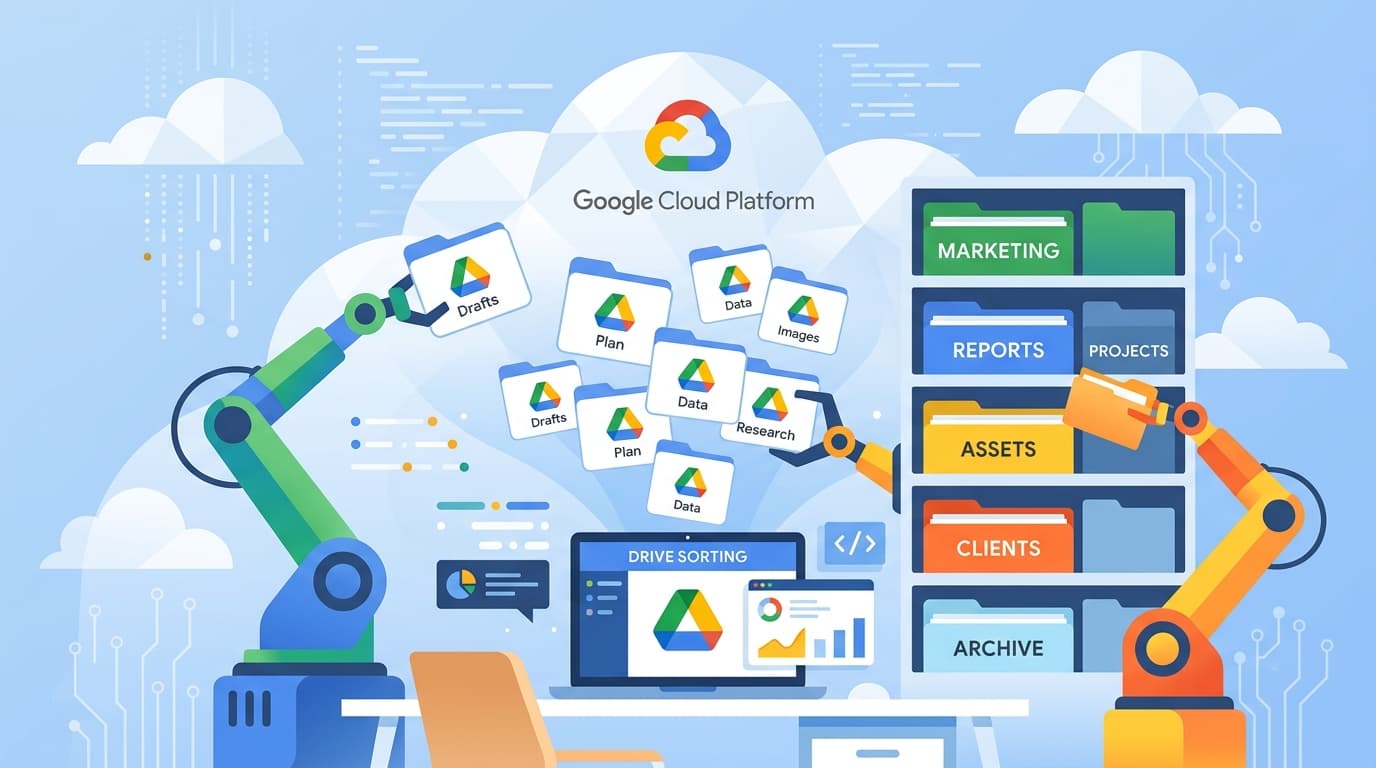
The Problem: Too Many Files, Too Little Time
If you've ever opened your Google Drive and felt overwhelmed by the chaos — hundreds of unsorted files, cryptic filenames, documents scattered across random folders — you're not alone. Most professionals and small business owners accumulate digital clutter at an alarming rate. Invoices, contracts, images, spreadsheets, and reports pile up without any consistent structure. Manually sorting them is tedious, error-prone, and frankly a waste of your time.
The good news? Google provides a powerful set of tools that, when combined, can do the heavy lifting for you. Google Apps Script, the Google Drive API, and Google Cloud Platform (GCP) form a trio that can be paired with AI to build a genuinely useful file management system. In this article, we'll walk through how these tools work together, and we'll provide real, working examples you can adapt for your own needs.
Understanding the Building Blocks
Google Apps Script
Google Apps Script is a JavaScript-based scripting platform built directly into Google Workspace. According to Google's own developer documentation, you can use it to build automations that interact with Google Docs, Sheets, Drive, Gmail, and more. The beauty of Apps Script is that it runs on Google's servers — you don't need to set up your own infrastructure. You simply write a function, run it (or schedule it), and it executes against your Google Workspace data.
For example, the Apps Script Automation Quickstart from Google demonstrates how to create a Google Docs document and email a link to it — all from a simple script. This same approach can be extended to work with files and folders in Google Drive.
Google Drive API
While Apps Script has built-in classes like DriveApp for basic Drive operations, the full Google Drive API (accessible via Apps Script's Advanced Drive Service or through REST calls from GCP) gives you much finer control. You can list files with complex query filters, move files between folders, update metadata, set permissions, and handle uploads programmatically. This is where the real power lies for building a proper file organisation system.
Google Cloud Platform and AI
GCP offers a range of AI and machine learning services that can be called from Apps Script or from standalone applications. Google Cloud's Natural Language API can analyse text content, the Vision API can classify images, and you can even call third-party AI models (such as those from OpenAI) via HTTP requests from within Apps Script. This means you can build a system that doesn't just move files around — it actually reads, understands, and categorises them based on their content.
Practical Example 1: Automatically Sorting Files in Google Drive by Name Pattern
Let's start with something straightforward. Suppose you have a Google Drive folder called "Inbox" where you dump all incoming files. You want a script that runs every hour and sorts files into subfolders based on their name prefix — for instance, files starting with "INV-" go to an "Invoices" folder, files starting with "RPT-" go to "Reports", and everything else goes to "Miscellaneous".
Here's a working Apps Script example:
function sortInboxFiles() {
  var inboxFolder = DriveApp.getFolderById('YOUR_INBOX_FOLDER_ID');
  var invoicesFolder = DriveApp.getFolderById('YOUR_INVOICES_FOLDER_ID');
  var reportsFolder = DriveApp.getFolderById('YOUR_REPORTS_FOLDER_ID');
  var miscFolder = DriveApp.getFolderById('YOUR_MISC_FOLDER_ID');

  var files = inboxFolder.getFiles();

  while (files.hasNext()) {
    var file = files.next();
    var name = file.getName();

    if (name.indexOf('INV-') === 0) {
      file.moveTo(invoicesFolder);
    } else if (name.indexOf('RPT-') === 0) {
      file.moveTo(reportsFolder);
    } else {
      file.moveTo(miscFolder);
    }
    Logger.log('Moved: ' + name);
  }
}
To run this on a schedule, go to the Apps Script editor, click the clock icon (Triggers), and set sortInboxFiles to run every hour. That's it — your inbox folder will be continuously tidied without you lifting a finger.
Practical Example 2: Using AI to Classify and Sort Files by Content
Name-based sorting is useful, but what if your files don't follow a naming convention? This is where AI comes in. You can use Google Cloud's Natural Language API — or even a simple call to an AI model — to read the content of a document and decide where it belongs.
Here's a conceptual example that extracts text from a Google Doc and uses an AI classification call to determine the category:
function classifyAndSortDocs() {
  var inboxFolder = DriveApp.getFolderById('YOUR_INBOX_FOLDER_ID');
  var files = inboxFolder.getFilesByType(MimeType.GOOGLE_DOCS);

  while (files.hasNext()) {
    var file = files.next();
    var doc = DocumentApp.openById(file.getId());
    var text = doc.getBody().getText().substring(0, 500); // first 500 chars

    var category = classifyWithAI(text);
    var targetFolder = getOrCreateFolder(category);
    file.moveTo(targetFolder);
    Logger.log('Classified "' + file.getName() + '" as: ' + category);
  }
}

function classifyWithAI(text) {
  var apiKey = 'YOUR_API_KEY';
  var url = 'https://api.openai.com/v1/chat/completions';

  var payload = {
    model: 'gpt-3.5-turbo',
    messages: [
      {role: 'system', content: 'You are a file classifier. Given text from a document, respond with exactly one category: Invoice, Report, Contract, Letter, or Other.'},
      {role: 'user', content: text}
    ],
    max_tokens: 10
  };

  var options = {
    method: 'post',
    contentType: 'application/json',
    headers: {Authorization: 'Bearer ' + apiKey},
    payload: JSON.stringify(payload)
  };

  var response = UrlFetchApp.fetch(url, options);
  var json = JSON.parse(response.getContentText());
  return json.choices[0].message.content.trim();
}

function getOrCreateFolder(name) {
  var parent = DriveApp.getFolderById('YOUR_SORTED_FOLDER_ID');
  var folders = parent.getFoldersByName(name);
  if (folders.hasNext()) {
    return folders.next();
  }
  return parent.createFolder(name);
}
In this example, the script reads the first 500 characters of each Google Doc, sends them to an AI model with a clear instruction ("classify this as Invoice, Report, Contract, Letter, or Other"), and then moves the file to the appropriate folder — creating the folder if it doesn't already exist. This approach works remarkably well for mixed collections of documents where naming conventions are inconsistent.
Practical Example 3: Uploading Files from Your Computer to Google Drive
What about getting files from your local computer into Google Drive in the first place? There are several approaches. One popular method is to use a Google Apps Script web app with a simple HTML form that lets you pick files and upload them directly to a specified Drive folder.
// Code.gs
function doGet() {
  return HtmlService.createHtmlOutputFromFile('Upload');
}

function uploadFile(data, fileName, folderId) {
  var folder = DriveApp.getFolderById(folderId);
  var blob = Utilities.newBlob(Utilities.base64Decode(data), 'application/octet-stream', fileName);
  var file = folder.createFile(blob);
  return file.getUrl();
}
<!-- Upload.html -->
<form>
<input type="file" id="fileInput" />
<button type="button" onclick="upload()">Upload</button>
</form>
<script>
function upload() {
var file = document.getElementById('fileInput').files[0];
var reader = new FileReader();
reader.onload = function(e) {
var data = e.target.result.split(',')[1];
google.script.run.withSuccessHandler(function(url) {
alert('Uploaded! ' + url);
}).uploadFile(data, file.name, 'YOUR_FOLDER_ID');
};
reader.readAsDataURL(file);
}
</script>Deploy this as a web app and you'll have a simple browser-based uploader that sends files straight to your chosen Google Drive folder. You can then combine this with the sorting scripts above — run the AI classifier on newly uploaded files to automatically place them where they belong.
For larger-scale operations or batch uploads from a local machine, you might use a Python script with the Google Drive API client library, authenticating via a GCP service account. This is particularly useful if you need to upload hundreds of files from a network drive or a local backup on a regular schedule.
Tying It All Together
The real magic happens when you connect these pieces into a single workflow. Imagine this pipeline: files arrive in your Drive (either uploaded manually, via a web form, or synced from your computer), a time-based trigger fires your Apps Script, the script reads the content of each new file, sends it to an AI model for classification, and then moves the file to the correct folder. You could even add a step that renames the file according to a standard convention, logs the action in a Google Sheet for audit purposes, or sends you a summary email at the end of each day.
This kind of setup costs very little to run. Google Apps Script is free for personal Google accounts and included with Google Workspace subscriptions. The Google Drive API has generous free quotas. The main cost would be the AI API calls, which for something like GPT-3.5-turbo are fractions of a penny per classification.
Getting Started with AI-Driven File Automation
If this sounds like something your business could benefit from, the best way to start is small. Pick one repetitive file management task — sorting invoices, organising project documents, archiving old files — and build a simple Apps Script to handle it. Once you're comfortable, layer in AI classification and expand from there.
At Brain.mt, we help businesses put AI to practical use in exactly this way — not with vague promises, but with real, working solutions tailored to how you actually work. If you'd like help building your own Google Drive automation system, or if you want your team to learn how to do it themselves, get in touch. We offer dedicated workshops and hands-on training sessions covering Google Apps Script, the Drive API, Cloud Platform integrations, and AI-assisted workflows. Contact us for more information and let's turn your file chaos into something manageable.